 HotelLobby
GUIDE · 2 PHOTOS · 3 STEPS
How to Make a Hotel Lobby AI Video
To make a Hotel Lobby AI video, you need two photos — one for each performer. Upload Photo 1 (left) and Photo 2 (right) to a Hotel Lobby AI generator, choose a resolution, and generate. On HotelLobbyRap you get a 15-second, 16:9 MP4 of your duo rapping in the orange studio with music and vocals included — no prompts, no editing and no watermark.
Make Your Hotel Lobby Video →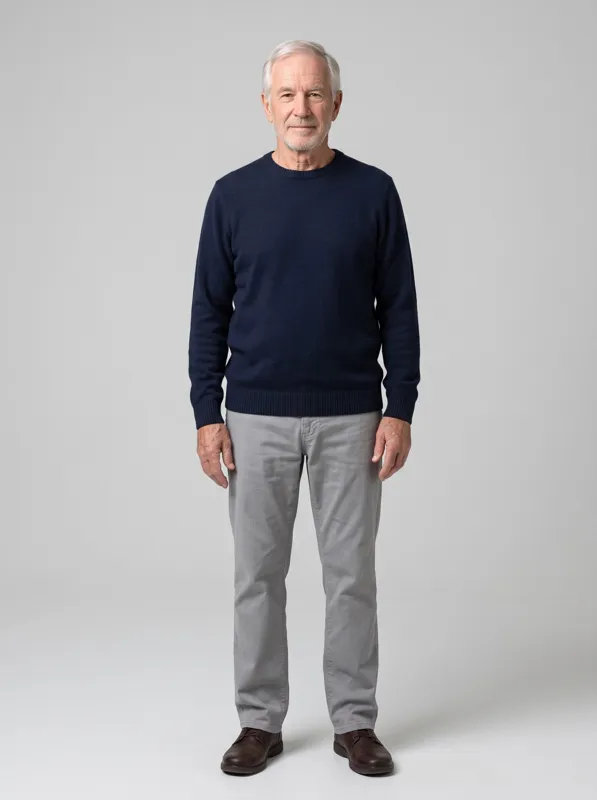
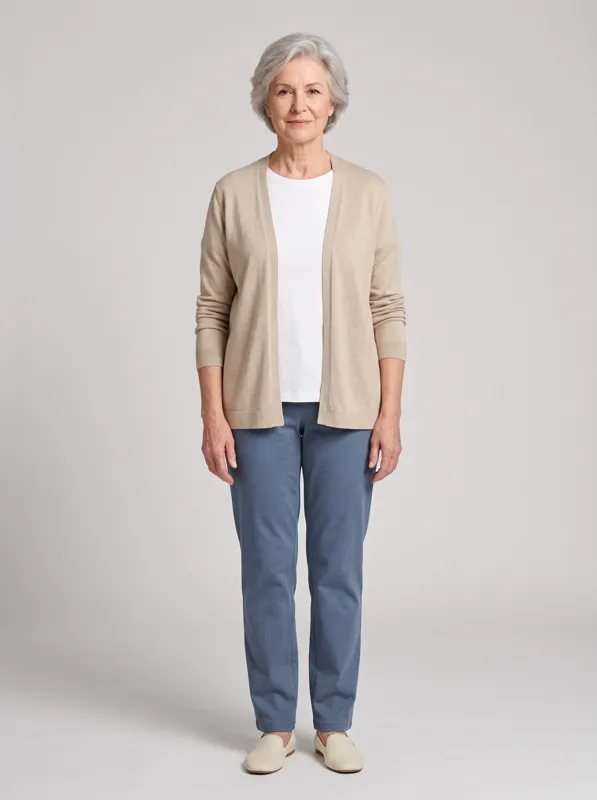
AI-generated results may change appearance, hand, or accessory details and are not guaranteed to match the input photos exactly.
What Is the Hotel Lobby AI Trend?
The Hotel Lobby AI trend recreates Quavo and Takeoff’s performance of “HOTEL LOBBY” on A COLORS SHOW: two performers rapping in a bright orange studio with a single microphone hanging between them. On TikTok and Instagram, people use AI to replace the two performers with themselves, a friend, a partner or a parent. You may also see it called the “Migos AI” trend.
What makes a video recognizable as the trend:
- Two performers, side by side
- A plain, saturated orange background
- One hanging studio microphone in the middle
- Rap gestures, head turns and alternating verses
HotelLobbyRap is an independent tool and is not affiliated with the artists or COLORS.
Step 1: Choose two photos
Use one photo per person. Photo 1 becomes the left performer and Photo 2 the right performer, so decide who stands where before you upload.
What works well
The photos in the demo above are a good reference.
- One adult per photo; photographed separately is fine
- Face clearly visible, good even lighting, no heavy filters
- Waist-up or full-body framing on a simple background
- JPG or PNG, up to 10 MB each
What to avoid
- Group photos — the generator needs one person per photo
- Sunglasses, hats or hands covering the face
- Very small, blurry or heavily edited images
- Photos of people who have not agreed — you need permission to use each person’s photo and likeness
Step 2: Generate the video
- Upload Photo 1 (left) and Photo 2 (right) and check the previews.
- Choose 480p (10 credits) or 720p (20 credits). The cost is shown before you start.
- Sign in with Google or email, confirm you have permission to use both photos, and start. If you have no credits yet, buy a one-time pack — the Starter pack covers two 480p videos or one 720p video.
You don’t need to write a prompt or edit anything: the orange studio, microphone, performance, lyrics and music are already part of the template. You can leave the page while it generates; the task keeps running and its status is shown in My Videos.
Start Generating → See pricing →Step 3: Download and post
When the video is ready, play it in My Videos and download the MP4. Files stay available for 7 days after the video is ready, so save a copy.
Posting tips
- Vertical platforms: the video is 16:9 like the original performance. TikTok, Instagram Reels and YouTube Shorts show it with bars above and below — no cropping needed.
- AI label: turn on the platform’s “AI-generated content” label for realistic AI videos.
- Music: the video already includes AI-generated music and vocals; check each platform’s music rules before posting.
- Permission: only post videos of people who agreed to appear in them.
Why Results Look Different
AI-generated results vary from one generation to the next. Faces, hands and accessories such as rings or glasses may not match the photos exactly, and the same photos can produce a different performance each time. Clear, well-lit, front-facing photos give the most consistent results.
If a generation fails for a technical reason, its credits are restored once. A completed video with details you don’t like is not a technical failure.
Hotel Lobby AI Trend: Common Questions
What is the Hotel Lobby AI trend?
A viral trend that recreates Quavo and Takeoff’s “HOTEL LOBBY” performance on A COLORS SHOW, using AI to put two new people into the orange studio with the hanging microphone. #
Why is it called Migos AI?
Quavo and Takeoff were members of the rap group Migos, so many people search for the trend as “Migos AI”. #
Can I make it with just two photos?
Yes. You don’t need to film anything — one photo for each performer is enough. #
Can I make it without an app?
Yes. HotelLobbyRap works in the browser on phone or desktop; there is nothing to install. #
Can I use one group photo?
No. Upload two separate photos, one person in each. #
How long is the video?
15 seconds, 16:9, as an MP4 with music and vocals included. #
Ready to Make Yours?
Two photos, one orange studio, a 15-second video with music and vocals.
Make Your Hotel Lobby Video → See pricing →